
Google Inactive Manager is a recent introduction by Google to allow account holders to share their email and data with a nominated next of kin or friends after they have died or have stopped using Google services. A previous post looks at the pros and cons of using Google Inactive Manager and why you might want to do so. Here’s a step by step guide to help you this up this function…
Setting up Google Inactive Manager
Go to your Google homepage, click on your profile or avatar picture at the top right hand side of the page and select ‘Account’ after your name. You’ll need to be logged in to set up this feature.
Once in your ‘Account’ page, select the ‘Data tools’ option at the top of the page and then click on ‘Set up Inactive Google Manager’.

You’ll be presented with the Google Inactive Manager dashboard. Click on ‘Set up’ to get started.

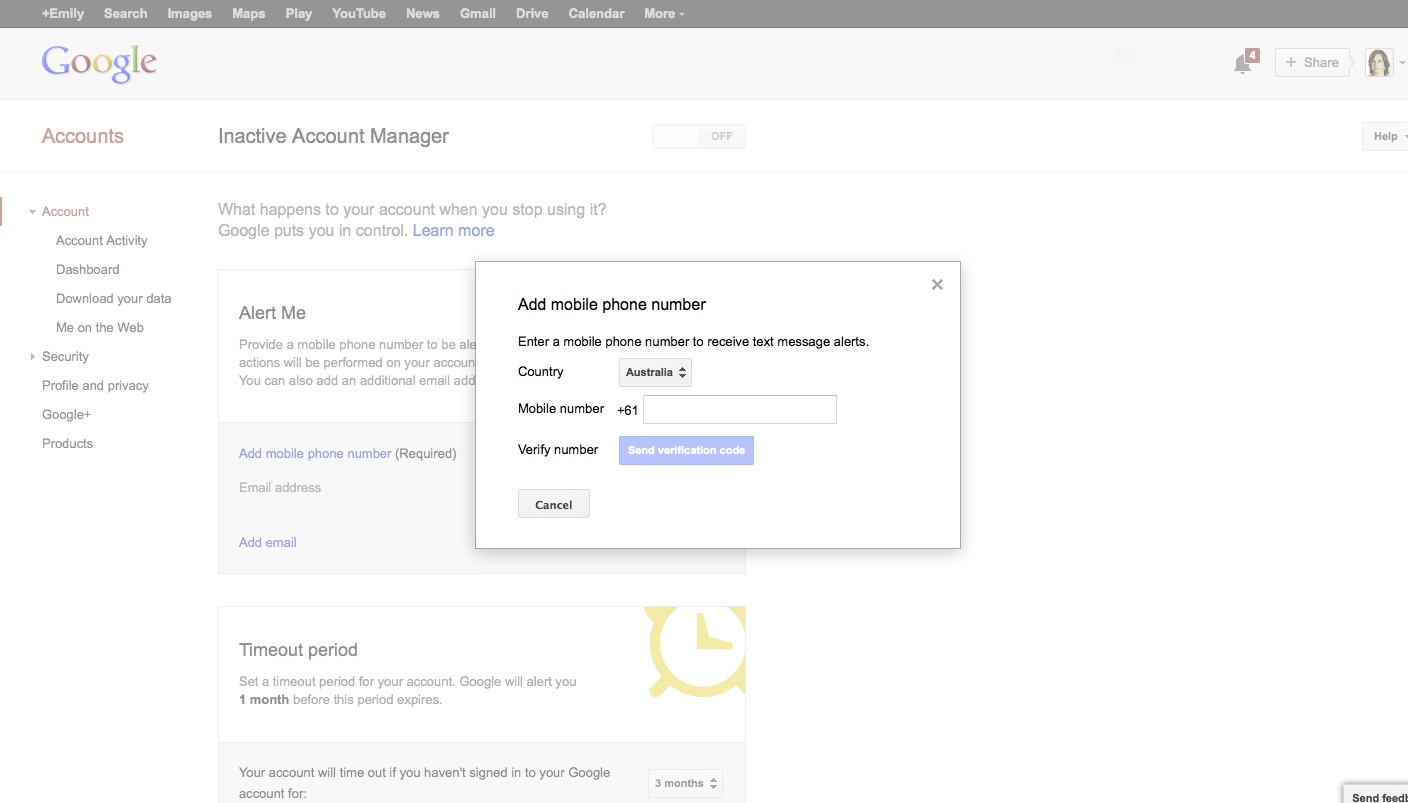
First you’ll need to provide a mobile phone number. Click on the ‘Add mobile phone number’. The system is intuitive so it doesn’t matter if you type in a zero after the country code or leave spaces between numbers.
Once done, hit the ‘Send verification code’ button – it should send a code to your phone via SMS which consists of a series of numbers or letters and numbers. Add to the ‘Verify number’ box which appears and click ‘Confirm’.
You can also add another email address to receive updates or alerts at this point.
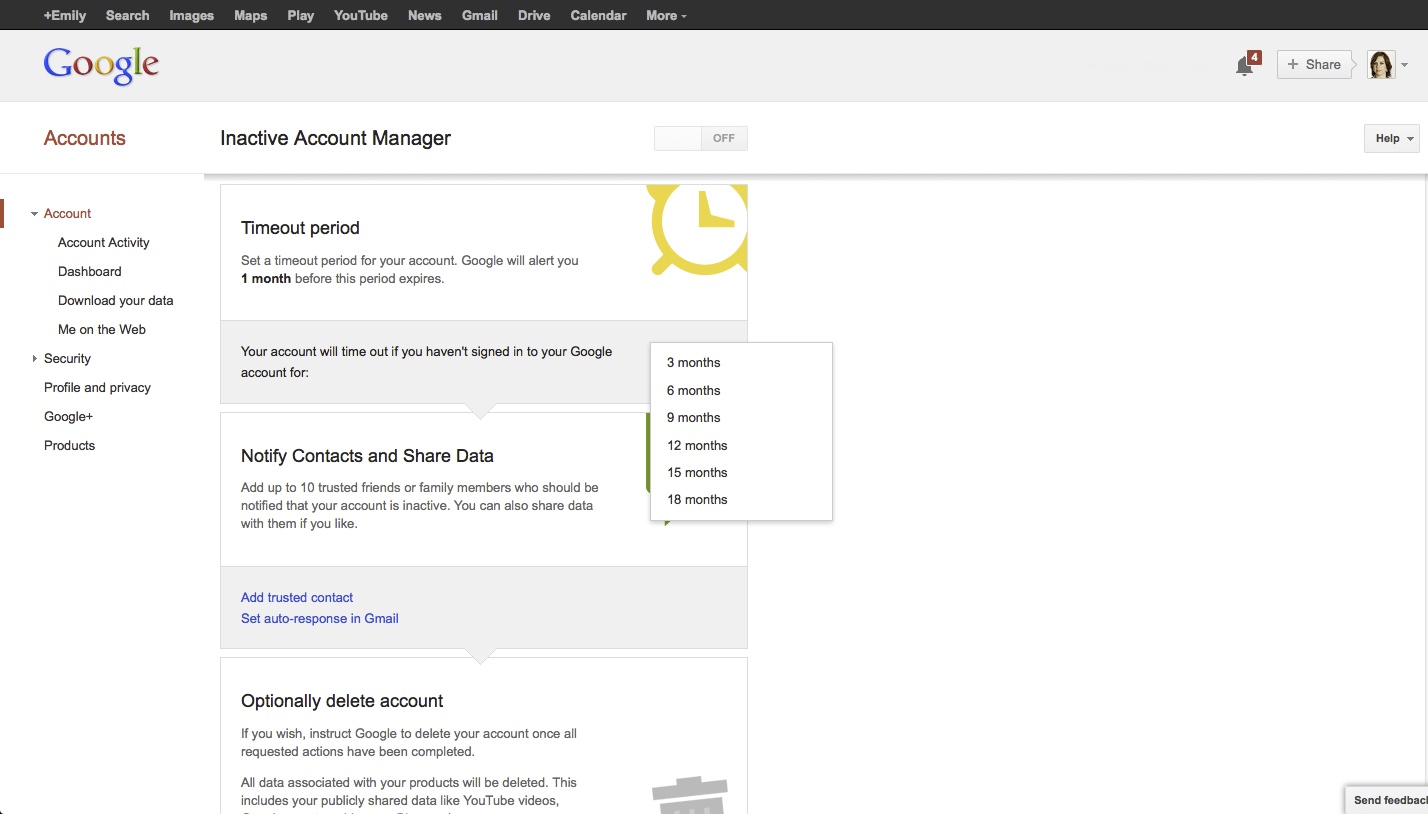
Once you’ve provided your contact details, select a timeout period on the Google Inactive Manager homepage. This means the length of time that you leave your Google account inactive, i.e. the period during which you do not log into Google for email, search, Google+, Drive or any of the Google tools. The minimum period is 3 months, the maximum period is 18 months. Think of the feature you most commonly use on Google and base a time period around that.
Remember though, Google only knows that you’ve used your account if you have logged into your account. If you use Google search everyday but are not signed in then you check your email every six months which you have to sign in for, Google will register the six month email activity on your account but not the search.
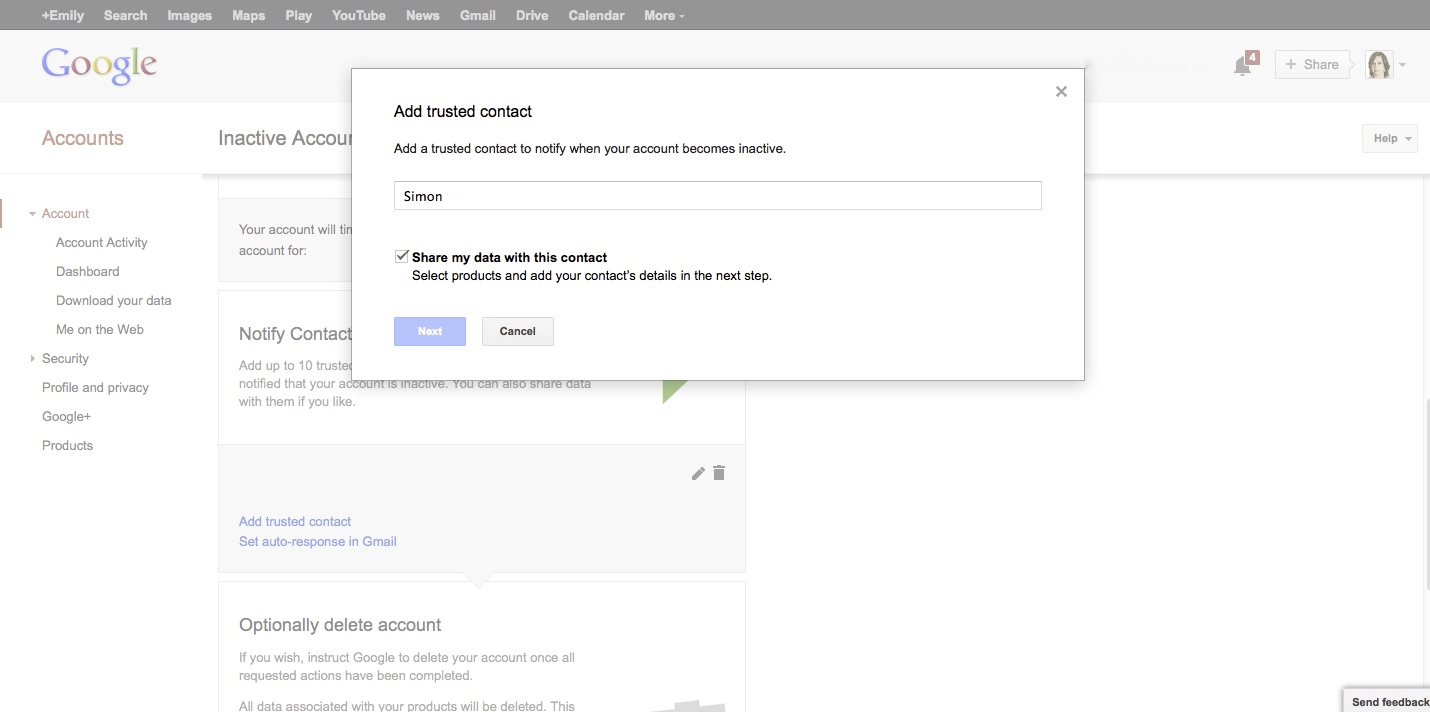
Next, select ‘Add trusted contact’. You can nominate up to 10 contacts who will have three months to download your data once the account is inactive. Here’s where you can enter the email details of the person(s) you nominate to receive your data. Check the ‘Share my data with this contact option’ to ensure that they are able to receive the data later. If there is someone that you don’t want to have access to your email or other Google data but would like to send them a message, you can add a note for them at this point which the recipient will receive when the timeout period has finished.
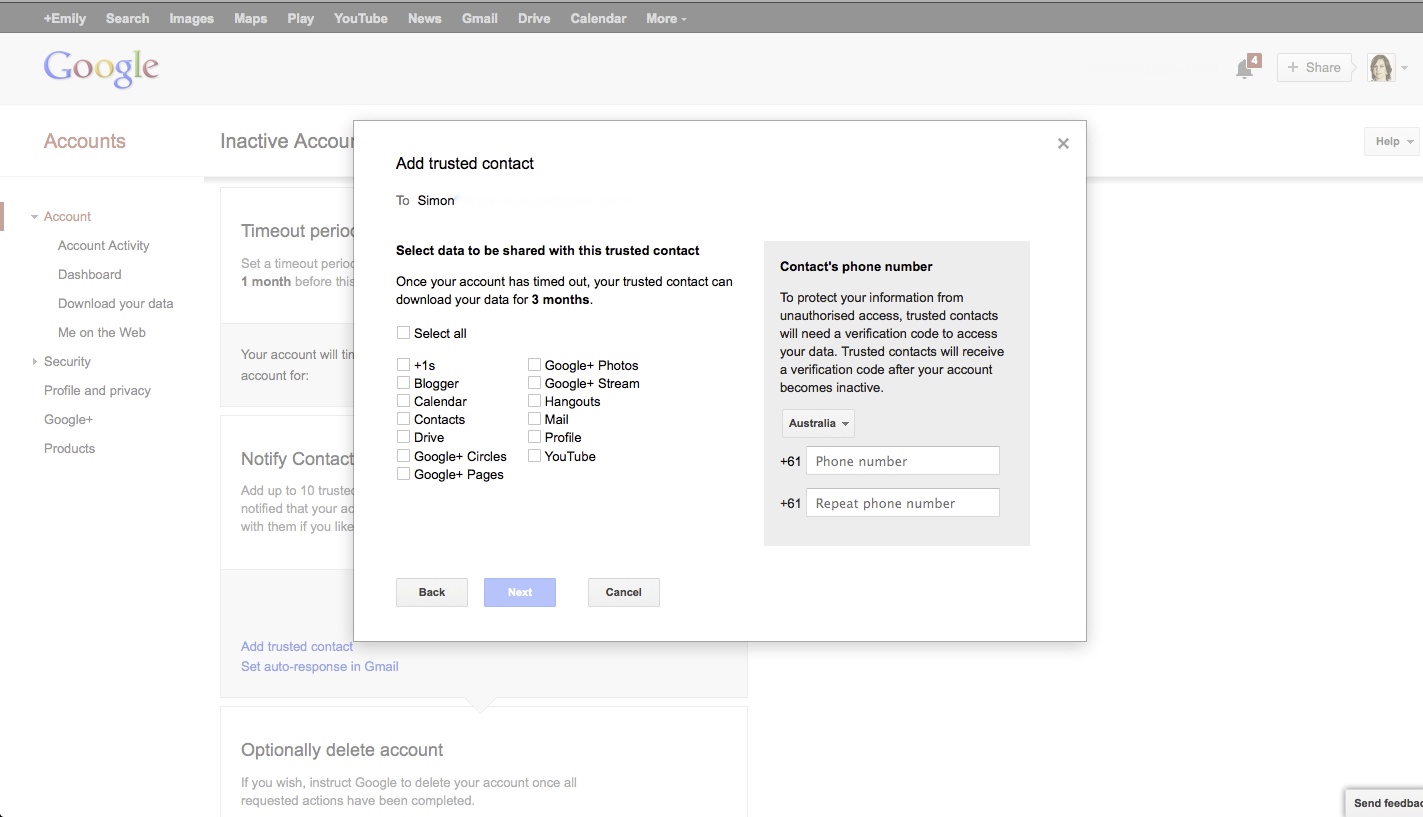
Select the Google data that you would like your nominated person(s) to download. As well as making sure your contact details are correct, you’ll need to verify the correct phone number for your nominated contact(s). You’ll also need to update your contact’s mobile phone if this changes over time so that they will be able to access your account once it has become inactive. You can pick and choose what your nominated contact(s) will be able to download and access.
After hitting the ‘Next’ button, you’ll be taken to a page where you can leave a message for the person you’ve nominated to receive your Google data. While setting up Google Inactive Manager is practical, the message doesn’t have to be. It’s a good opportunity to leave a thoughtful message behind for someone who is grieving. What would they want to hear? Anything you want them to know? What you say could make a difference to them.

Google Inactive Manager also allows you to set up an auto-response to incoming email once your Google account has become inactive.
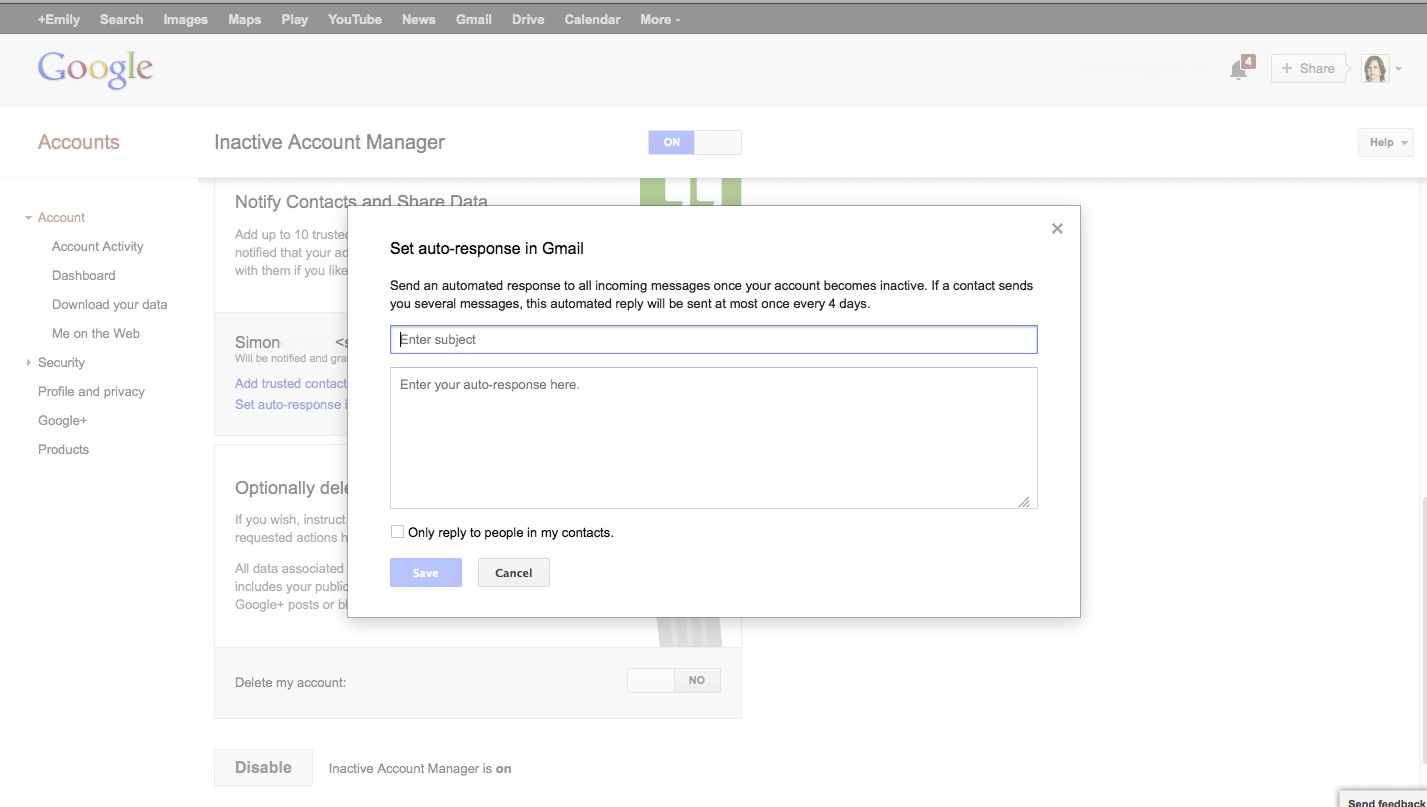
Lastly, you decide what happens to your Google account once your outlined actions have been completed. Would you like the account to be deleted? Google Inactive Manager includes this option which will also remove any public comments/data you have, for instance on YouTube or Google+.
 Once you’ve hit ‘Enable’, your Google settings are confirmed. Remember, you are able to update your settings at any point. Visit this earlier post on things to consider when setting up Google Inactive Manager.

 Away For A Bit